Installation guide
Getting Started · updated 2026-07-10
Choose your operating system | |
WINDOWS | macOS |
Windows Installation Guide
Getting started with Pyraxis only takes a few minutes.
1. Download Pyraxis
Download the Windows installer from the download page.
Download size: Approximately 1.5 GB
A stable internet connection is recommended.
2. Run the Installer
Locate and open the installer:
Pyraxis_x.x.x_x64_en-US.exe
If Windows asks for permission to make changes to your device, click Yes.
3. Install Pyraxis
Follow the on-screen installation wizard and choose where you'd like to install Pyraxis.
Recommended: Have at least 20 GB of available disk space for the Pyraxis application, AI models, and your local workspace.
4. Restart Your Computer
Once the installation is complete, restart your computer to ensure all required components are properly initialized.

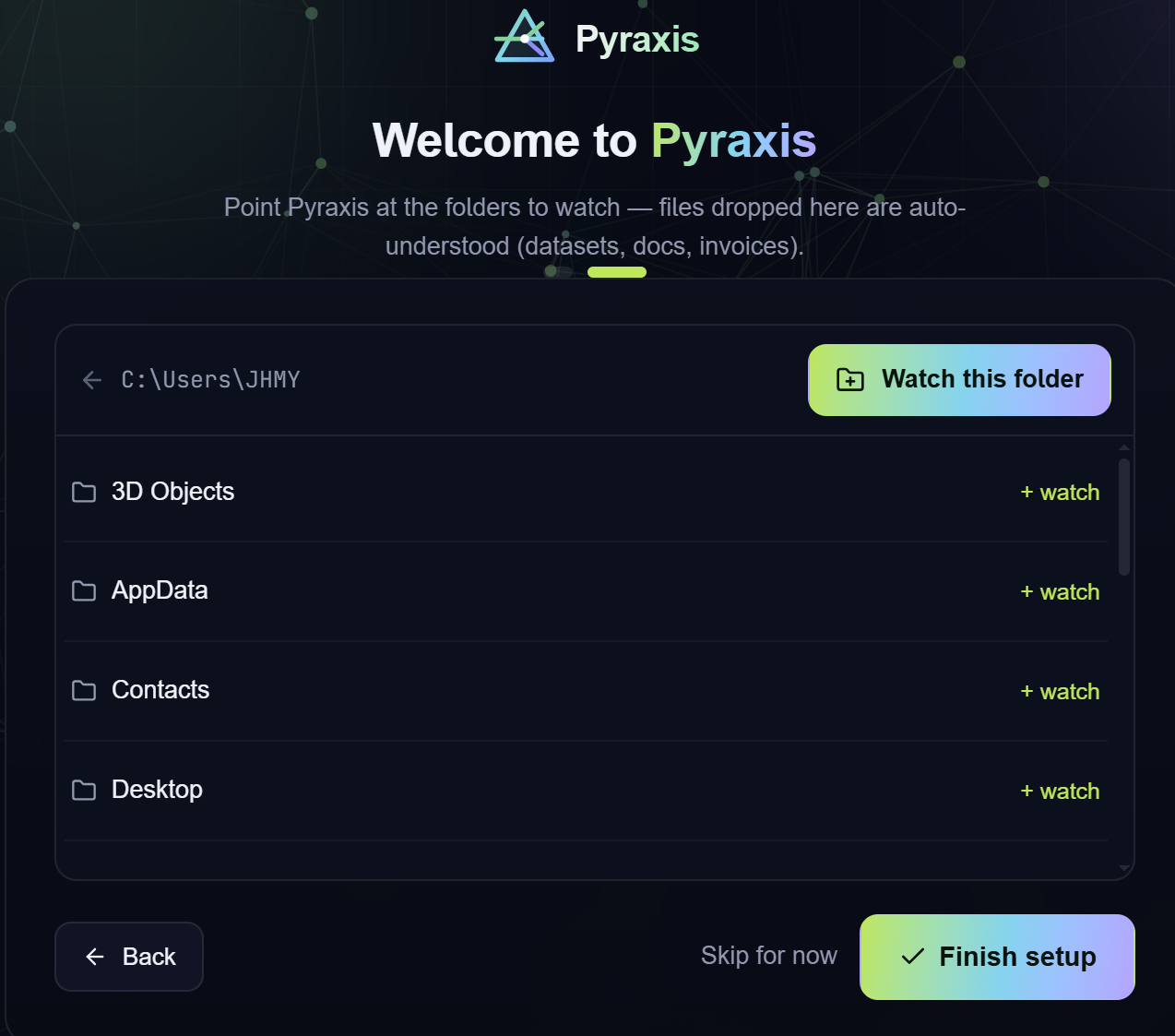
5. Activate Pyraxis
After restarting, launch Pyraxis.
You'll be greeted with the activation screen. Enter your Activation Code, then click Activate to complete the setup.
That's it! You're now ready to start using your private, on-device AI assistant.
macOS Installation Guide
Getting started with Pyraxis on macOS is quick and easy.
1. Download Pyraxis
Download the macOS installer from the download page.
Download size: Approximately 1.5 GB
A stable internet connection is recommended.
2. Open the Installer
Locate the downloaded installer and open the Pyraxis .dmg file.
Drag Pyraxis into your Applications folder when prompted.
3. Launch Pyraxis
Open Applications and launch Pyraxis.
The first time you open the app, macOS may display a security prompt because the application was downloaded from the internet.
If prompted:
Click Open to continue.
If macOS blocks the app, go to System Settings → Privacy & Security, then click Open Anyway next to the Pyraxis security message.
4. Allow Initial Setup
Pyraxis will complete its first-time setup and prepare your local AI environment.
Recommended: Have at least 20 GB of available disk space for the Pyraxis application, AI models, and your local workspace.
Depending on your Mac, the initial setup may take a few minutes.
5. Activate Pyraxis
Once setup is complete, you'll see the activation screen.
Enter your Activation Code, then click Activate to unlock Pyraxis.
You're all set! Welcome to your private, on-device AI workspace.